Guide
How to use hearth
Step by step, with the same button names you’ll see in the app. Pick what you want to do.
Get started
Sign in, name your home and add the people who live with you. It takes about two minutes.
Get the app
The app is coming to the App Store for iPhone and iPad. Families testing it now get it through TestFlight.
Sign in with Apple
Tap Continue with Apple. There’s no password, and hearth never asks for your contacts.
Open your invite, if you have one
If family sent you a link, open it before you start. You can also paste it on the first screen. You’ll see who invited you, and the app walks you through the rest.
Name your home
Pick the name family sees on everything you share, like “The Hollis home” or “Nana & Pop’s”.
Turn on notifications
So you hear when family shares something, asks for your OK or lights the hearth. You can change this later in Settings.
Add the people under your roof
In Our home, tap Add someone, then Someone who lives here, and send them the invite. Once they accept, let them in from Our home.
Good to know
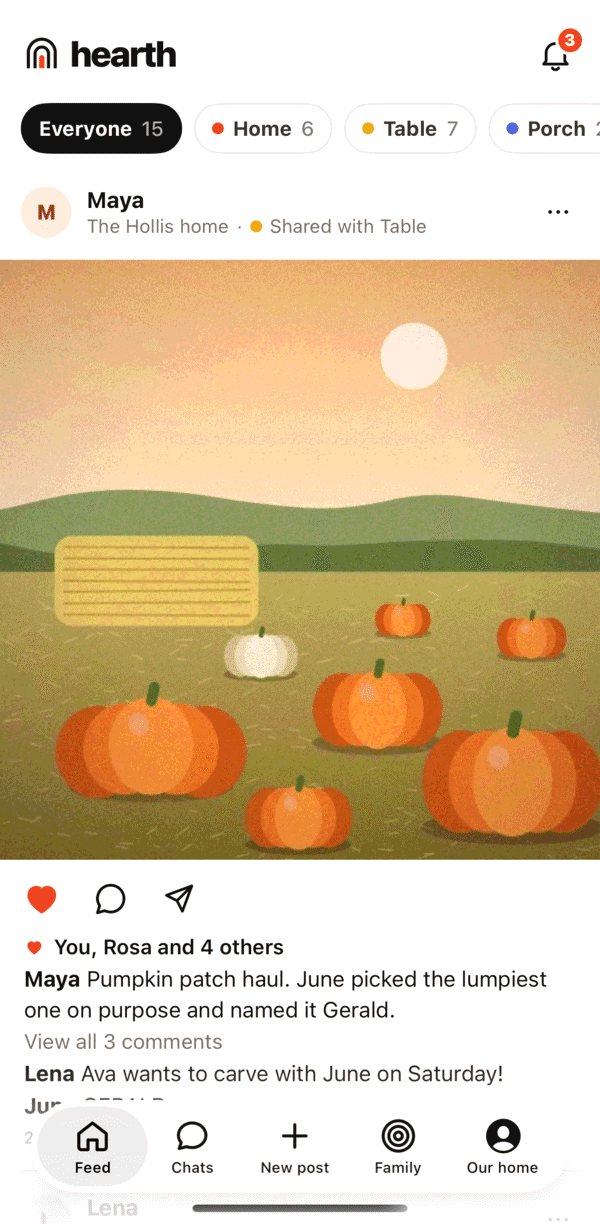
The tabs along the bottom are Feed, Chats, New post, Family and Our home. On iPad they become a sidebar.
Invite your family
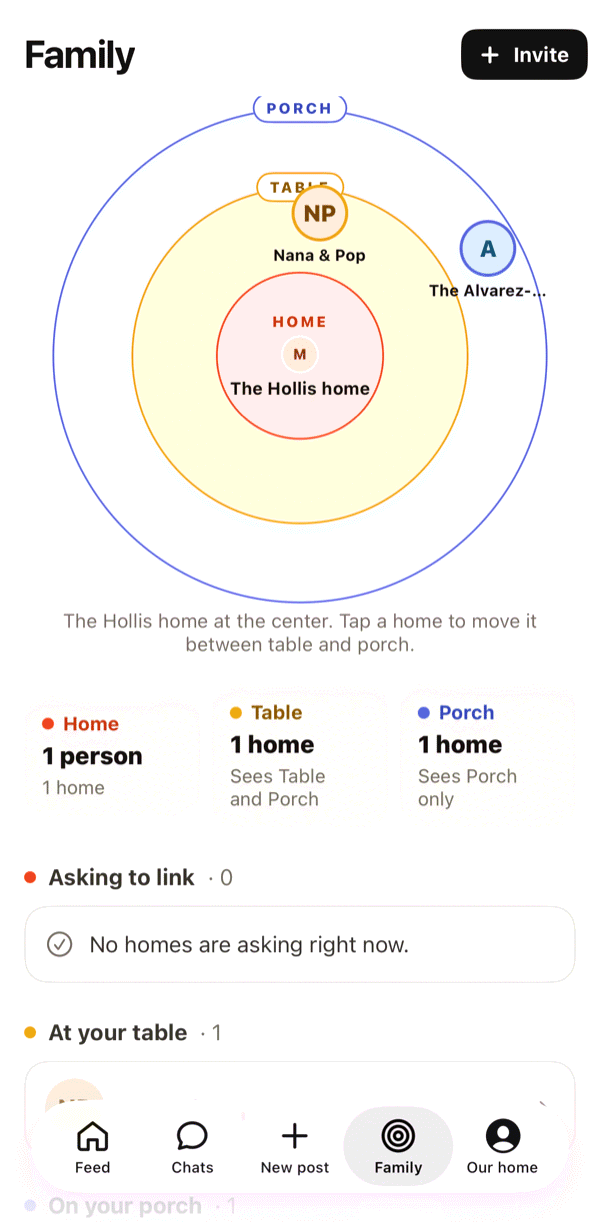
Every family you invite starts a home of their own, linked to yours. You decide, privately, where their home sits for you.
Open Family and tap Invite
Choose Another family for a sister, your parents or a cousin. (Someone who lives here joins your own home, and Your kid sets up a kid account.)
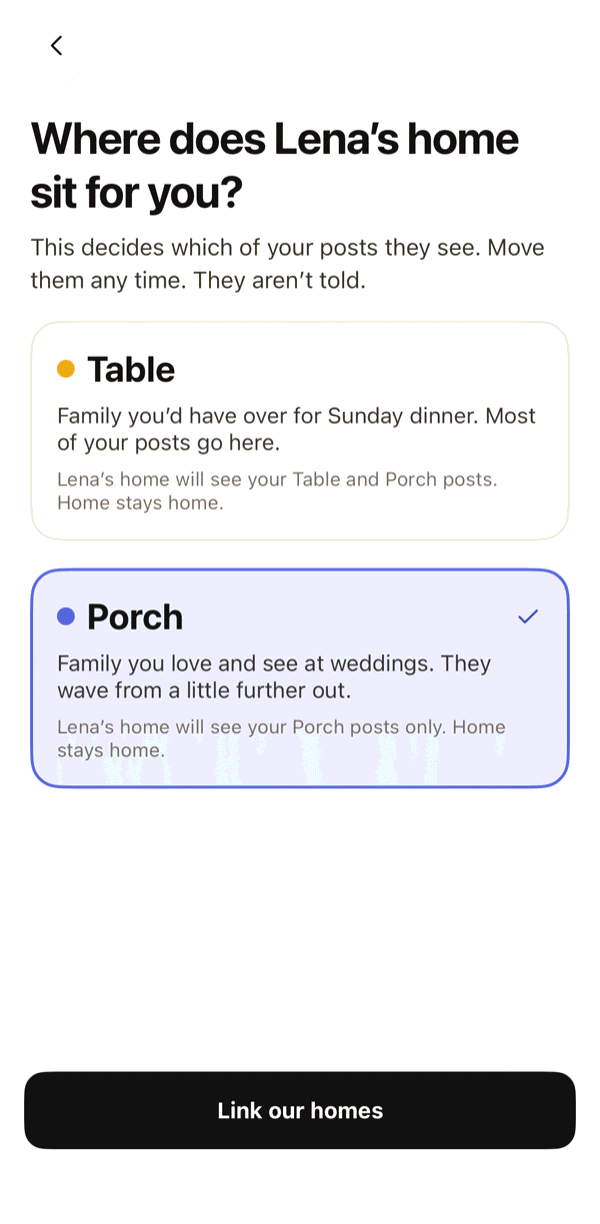
Choose where their home sits for you
Table, for family you’d have over for Sunday dinner, or Porch, for family a little further out. Only your home sees this choice, and you can change it any time.
Send the link
Tap Create invite, then Send it or Copy link. Each invite works once and expires in 7 days.
They start their home
They open the link, sign in with Apple, name their home and choose where your home sits for them. You won’t see their choice, and they won’t see yours.
Confirm them
Their home shows in Family under Requests. Look it over and tap Confirm. Nothing is shared until you do.
Good to know
To move a home later, open Family, tap the home and change where it sits. Nobody is told, and it applies to older posts too.
Unlink home is on the same screen. They aren’t told, and they’d need a new invite to link again.
Requests and suggestions shows homes your linked homes are linked with. Nothing links unless both homes say yes.
Share a photo or video
Pick it, make it look right, then choose exactly who sees it.
Tap New post
It’s the + in the middle of the tab bar. Choose Photos or Videos. Clips can be up to 1 minute.
Edit it
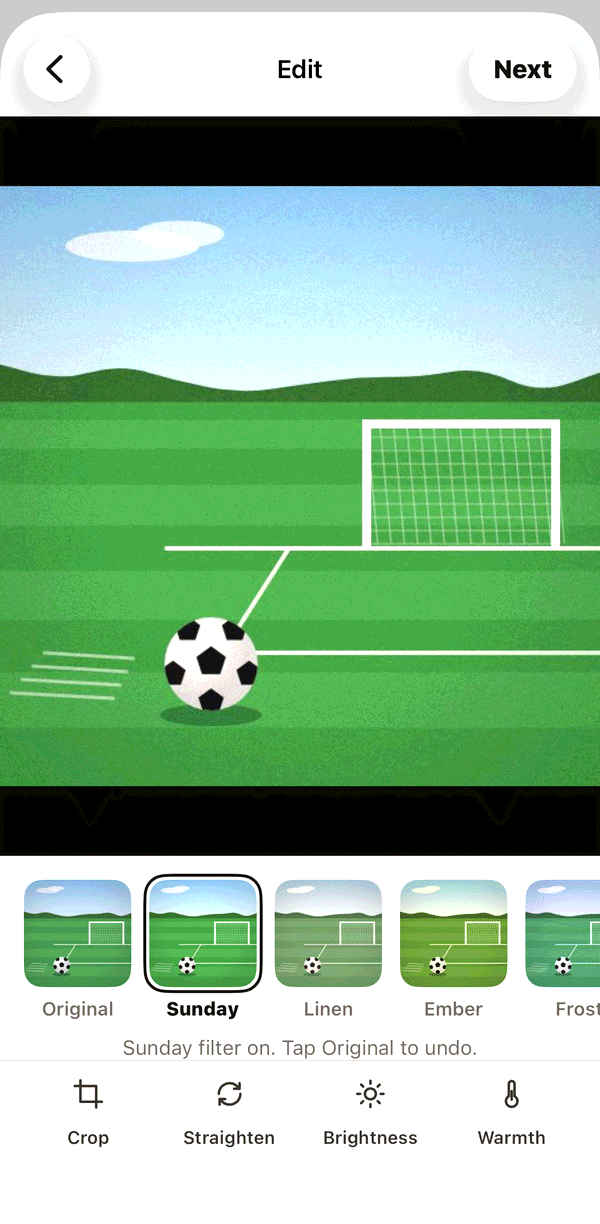
Try a filter (Original, Sunday, Linen, Ember, Frost or Attic). Every photo post is square: drag and pinch to frame it, and use Straighten, Brightness or Warmth if you like. Tap Next.
Write a caption
Say what’s going on. Family reads it right under the photo.
Pick who sees it
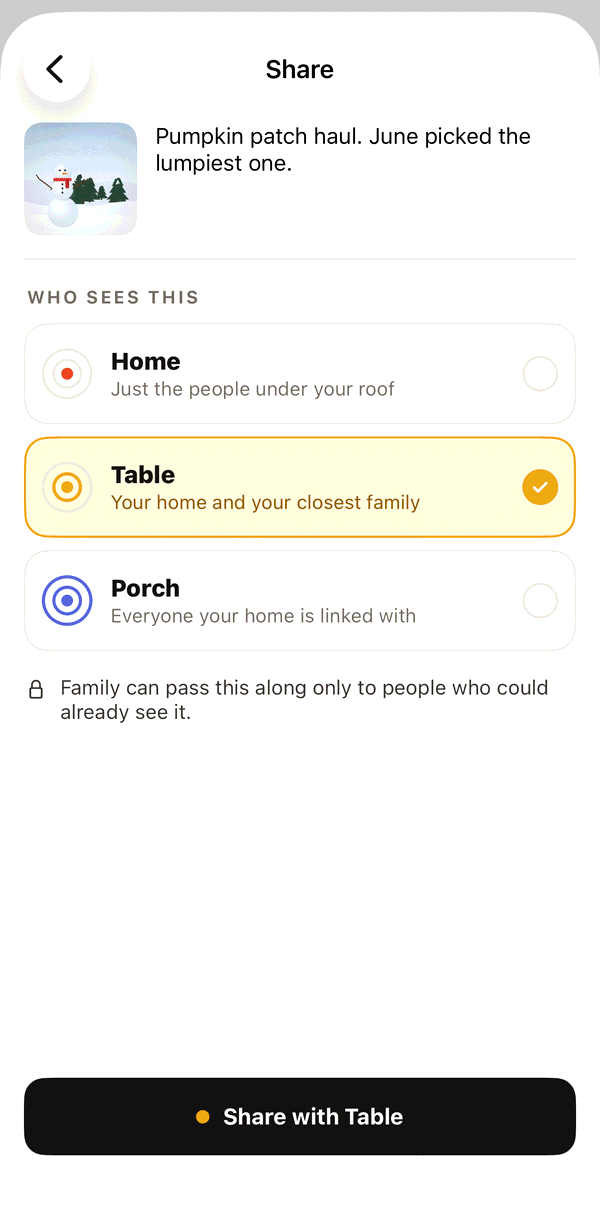
Home, Table or Porch, or Choose homes to pick homes one by one.
Share
The button names where it’s going, like Share with Table. Your post shows “Shared with Table” so you always know.
Good to know
Tap ••• on your own post to change who sees it, save it to Photos, hide it from your feed or delete it.
The send arrow under a post puts it in a chat, but only a chat where everyone can already see it. Posts move inward, never outward.
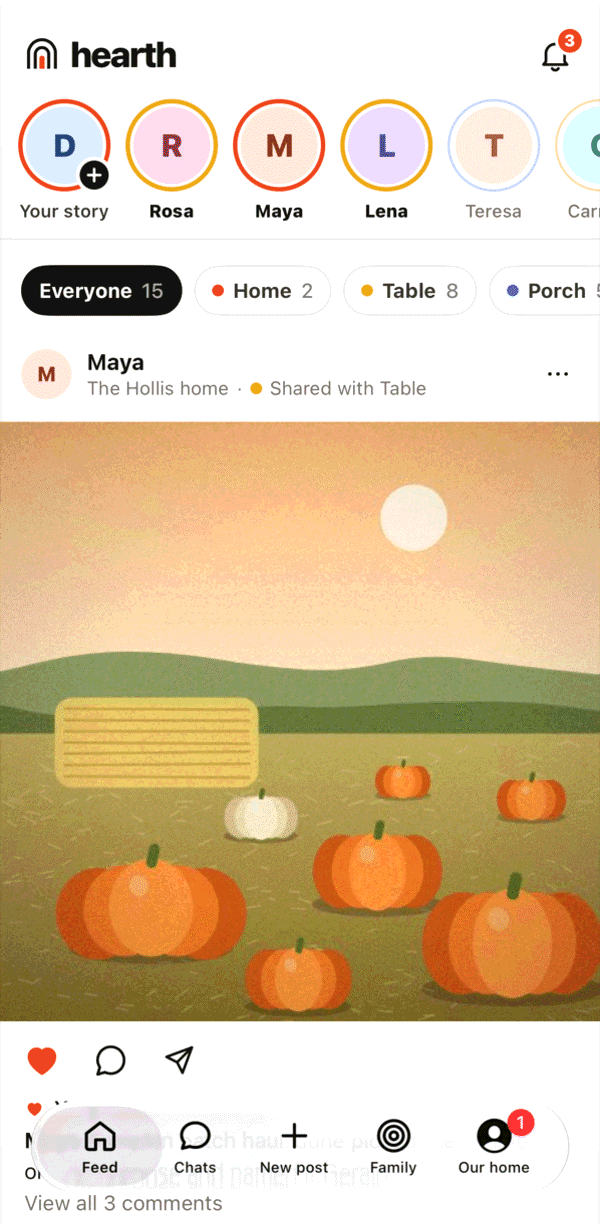
The chips at the top of the feed (Everyone, Home, Table, Porch) filter it by your own labels.
When there’s something from this day in earlier years, an On this day card shows up in your feed. You can share your own post again.
Stories
A photo or a short clip that’s gone in 24 hours. Good for the little things.
Tap Your story
It’s the first circle at the top of your feed.
Take a photo or a clip
Clips can be up to 15 seconds. You can also choose from your library and add a caption.
Choose who sees it
Home, Table, Porch or Choose homes, just like a post. Then share it.
Watch the family’s stories
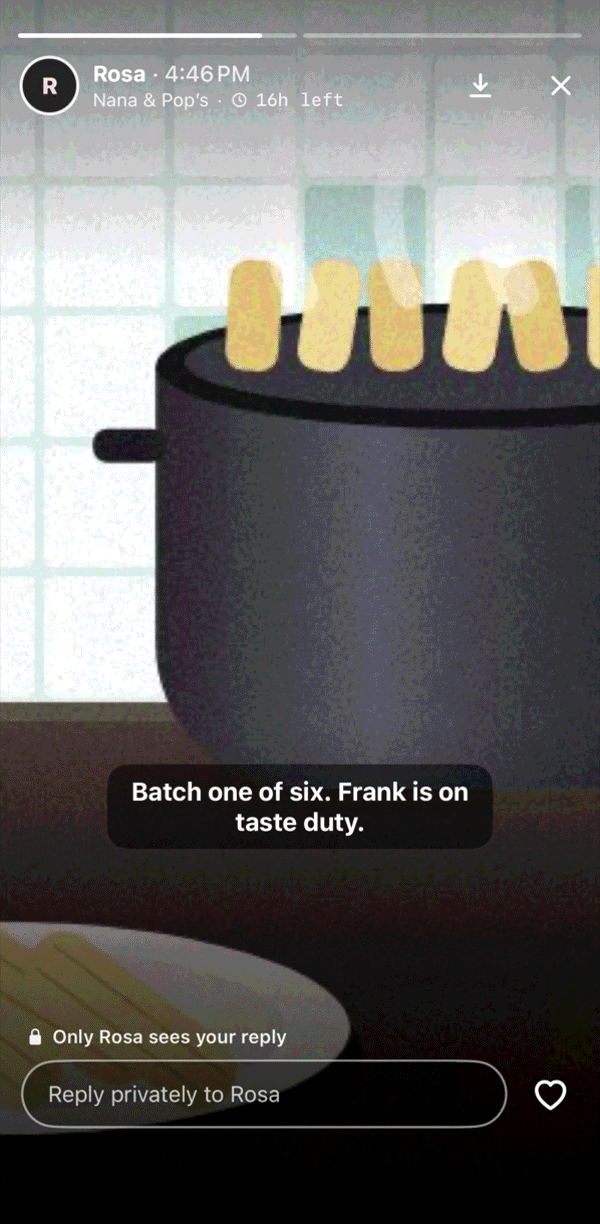
Tap anyone’s circle and tap through. The color of each circle shows how close that person is to you, by your own labels: ember for your home, amber for your table, dusk for your porch. Only you see these colors.
Reply privately
Type in Reply privately at the bottom. It goes into a chat with just the two of you, never onto the story.
Good to know
Tap Seen by on your story to see who watched. People from homes linked to yours are named; anyone else shows as “a relative”.
A kid’s story for the table waits for a parent’s OK, and its 24 hours start when it’s approved.
Chats and calls
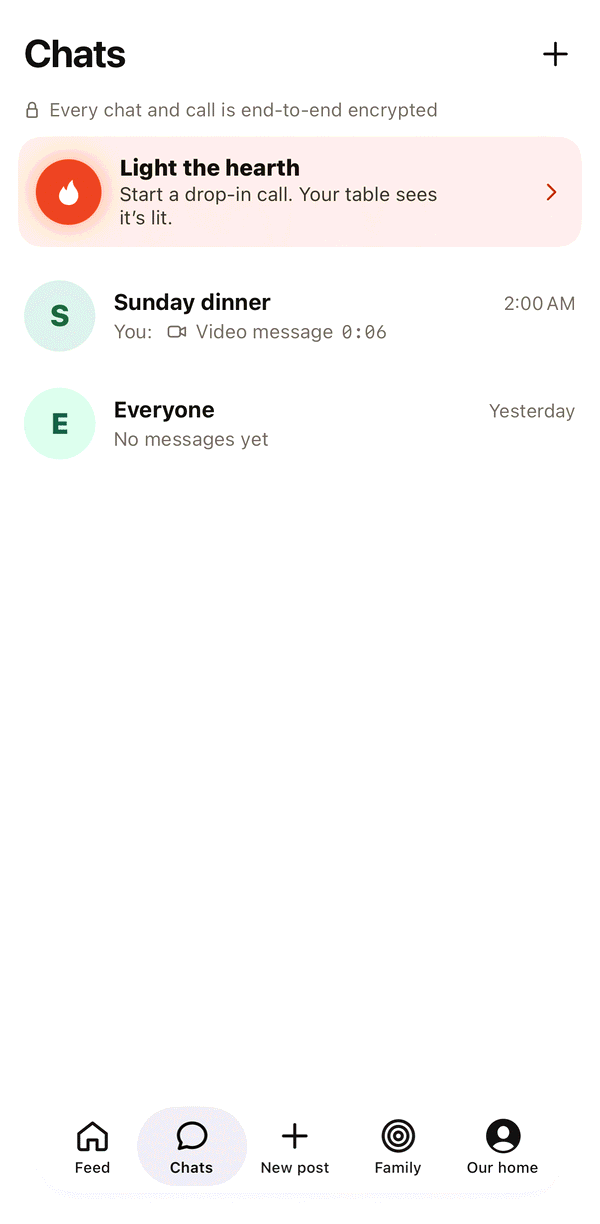
Every chat and call is end-to-end encrypted. Lighting the hearth starts a call anyone in the chat can drop into.
Start a chat
On the Chats tab, tap +, pick people from your home and linked homes, and give the chat a name if you like.
Send a video message
Tap the record button in a chat and talk for up to a minute. It plays in place, with sound.
Light the hearth
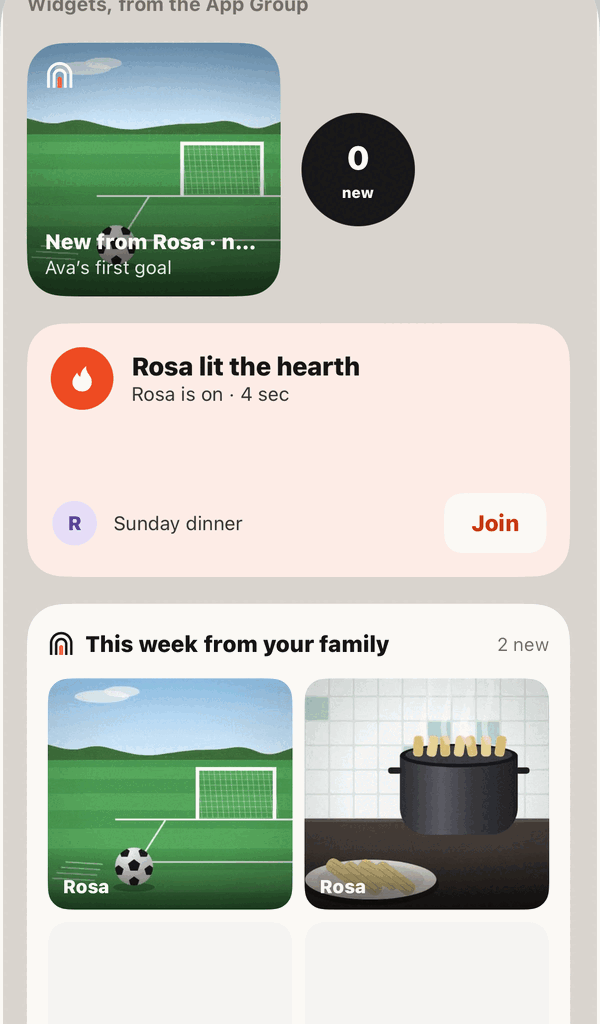
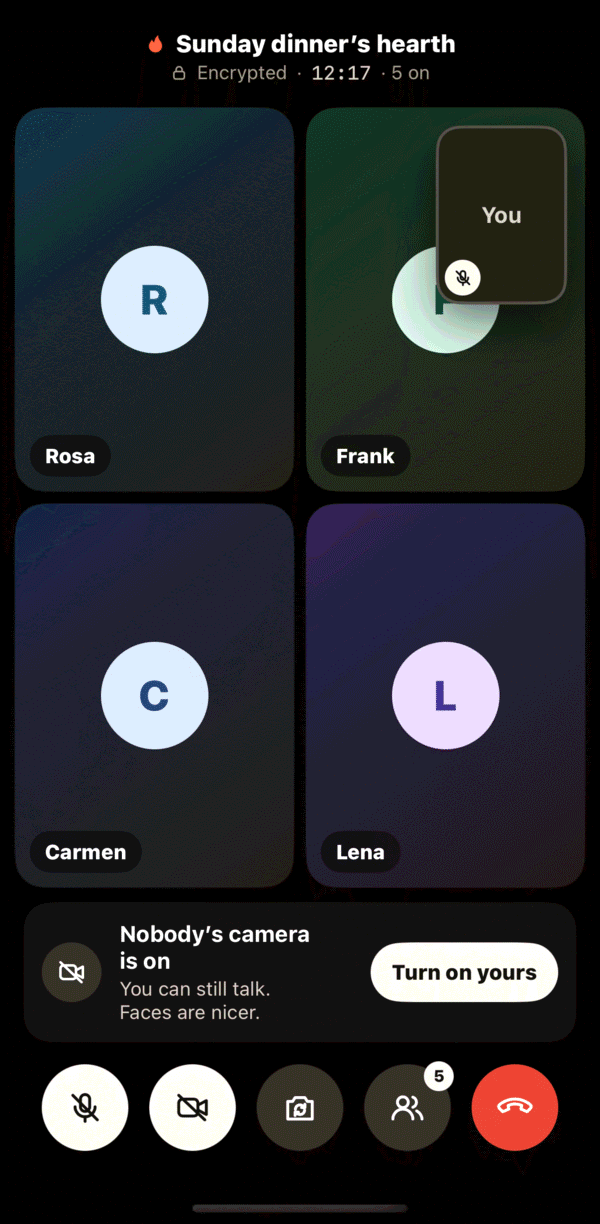
Tap Light the hearth at the top of Chats, or the hearth in a chat’s header. Everyone in that chat gets a notification and a Lock Screen card, and drops in when they’re free.
Schedule a call
Tap the calendar at the top of a chat. Name the call, pick the day and time, and choose Just once, Every week or Every 2 weeks. Add a reminder, and turn on Ring like a phone call so nobody has to find the app.
On the call
Mute, turn your camera off, flip it, or see who’s on. Leaving puts the hearth out once the last person goes.
Good to know
Send to a chat shows every chat, and locks the ones where someone couldn’t already see the post.
Events and trips
One place for a trip or a big weekend: plan it, share it while it happens, and keep the album after.
Create the event
Go to Family, tap Events, then New. Give it a name, dates, a place (search Apple Maps and name the pin) and a cover photo.
Pick who’s coming
Choose people one by one from your home and linked homes. Only they see the event. Grown-ups add their own kids.
Invite a guest, if you need to
Invite someone outside your family with a phone number or email. It’s an invite to this event only: they see its chat, album and map, and no homes get linked.
Plan it
Everyone answers Going, Maybe or Can’t go. Share one packing list and a simple schedule.
Use the hub during the trip
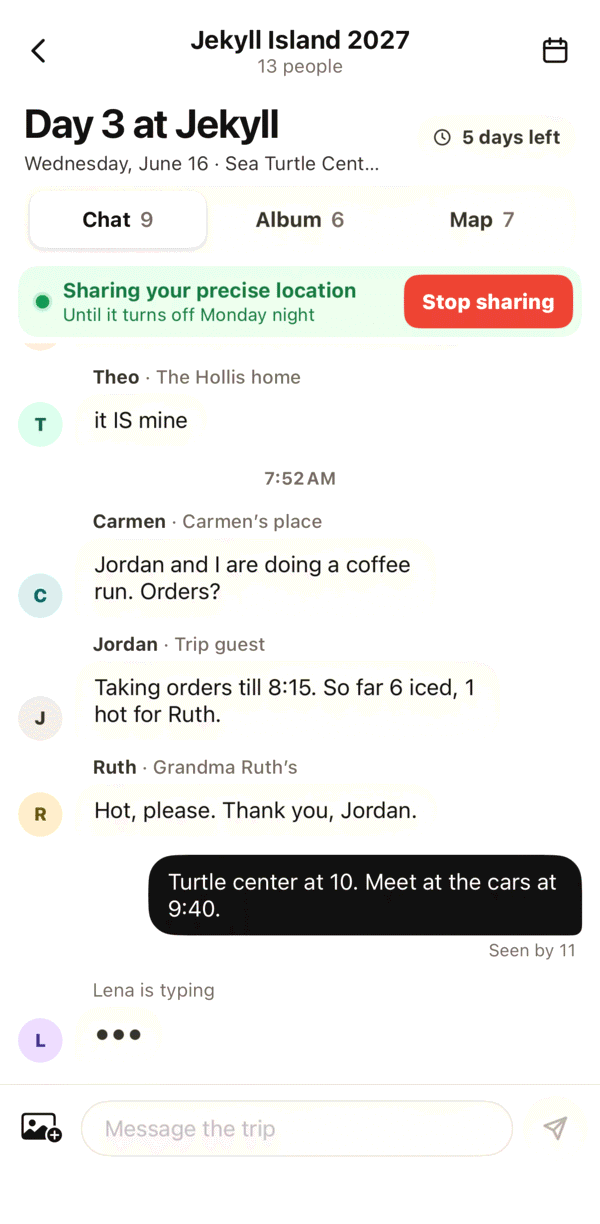
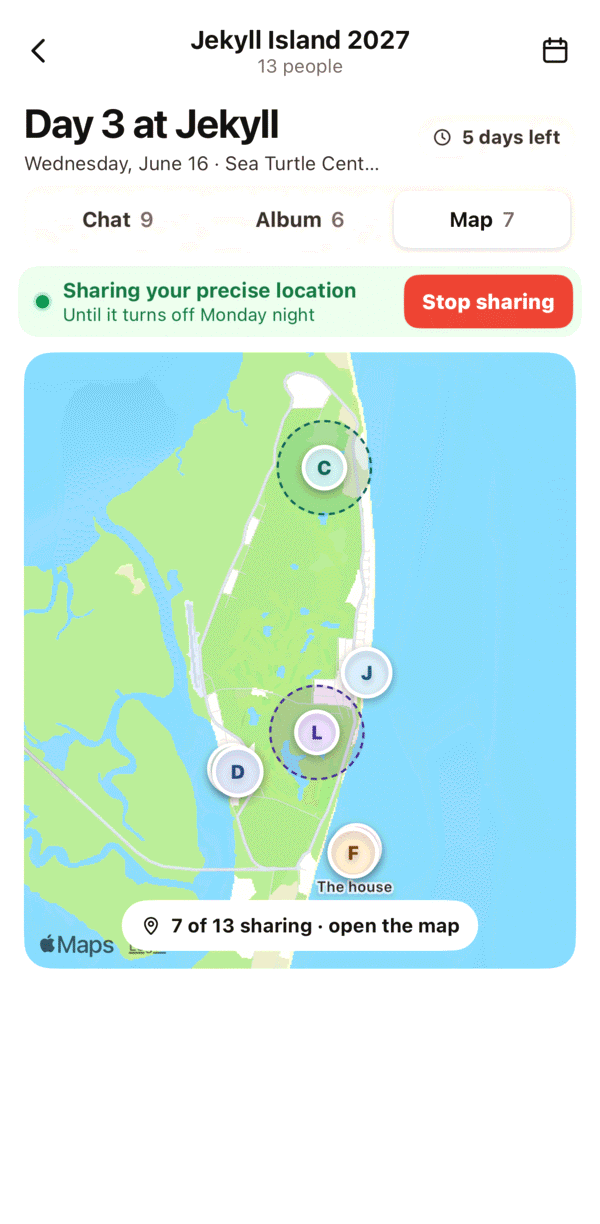
The event has its own Chat, Album and Map. Location is off unless you turn it on, works only during the dates, and can be precise or approximate. Tap Stop sharing any time.
Keep the album
When the event ends, the chat closes and location stops. The album stays for everyone who went. Share your favorites to your table, or plan next year’s trip with the same people.
Good to know
Nothing in an event goes to anyone’s feed. Location is end-to-end encrypted, and a kid’s location is shared only if a parent turns it on.
Kids
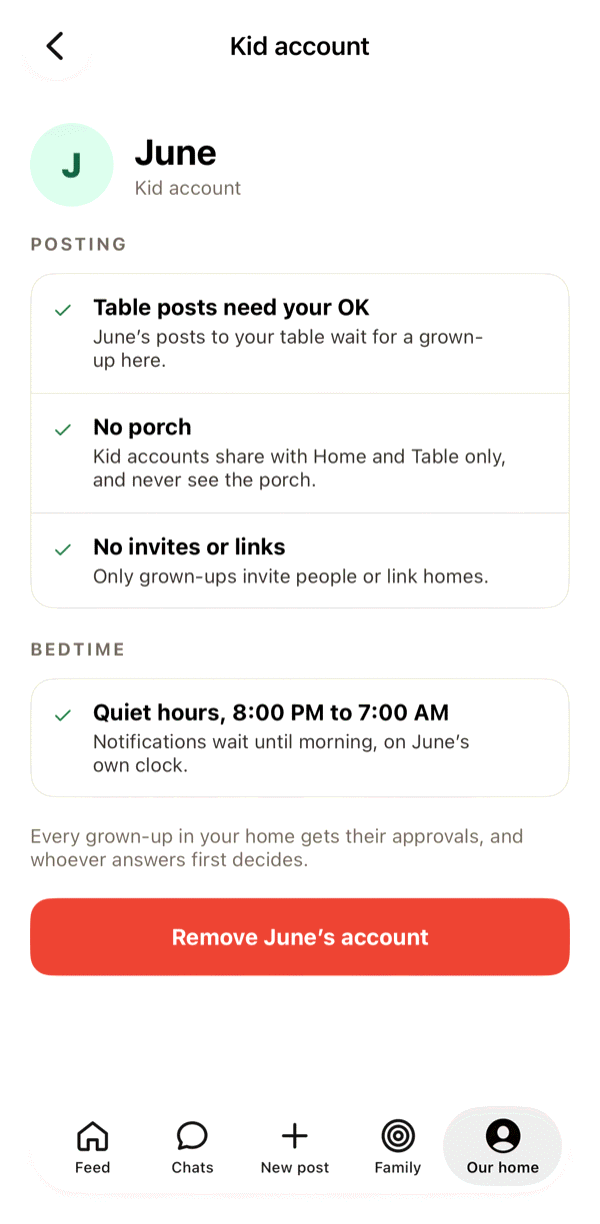
Kid accounts are for children under 13. You set them up, and they share with your home and, with your OK, your table.
On your kid’s iPad
Open hearth and tap Setting up a kid’s iPad? A pairing code appears.
On your phone
Go to Our home and tap Set up a kid’s iPad. Type the code from their iPad, their first name and their birth month and year, then tap Create account.
They’re in
Their iPad signs in by itself. No email, no password, and it stays signed in.
Approve what they share with the table
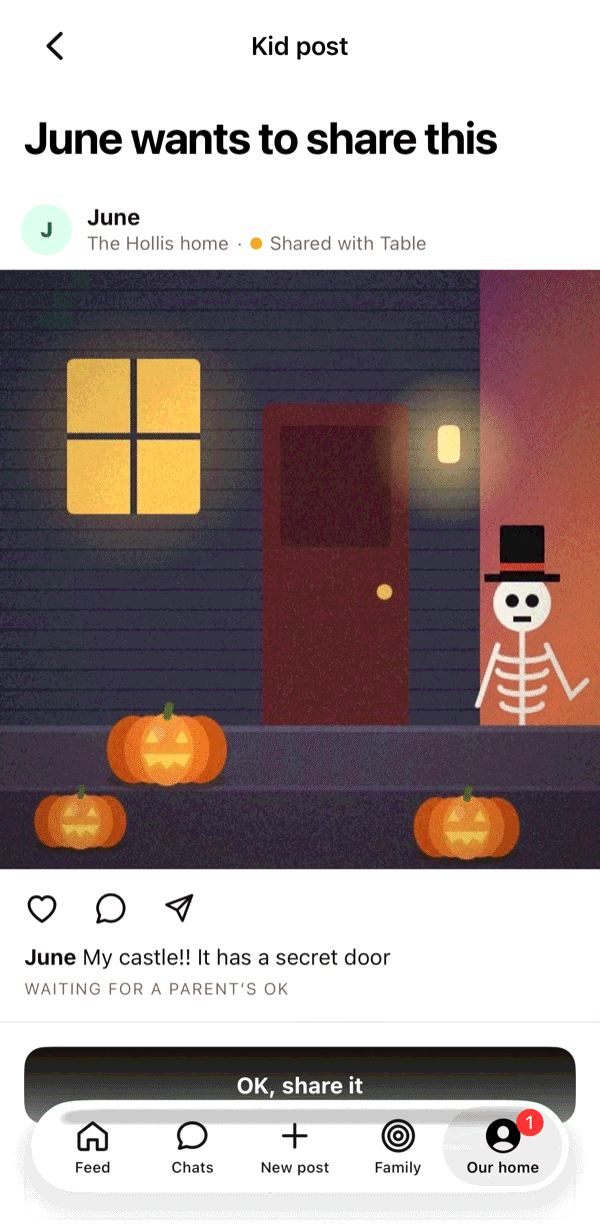
Posts and stories to Home go straight through. Table posts wait in Our home under Waiting for your OK: tap OK, share it or Keep at home. Any grown-up in your home can answer.
Good to know
Kids can’t share with the porch until they turn 13, can’t pick homes one by one, and can’t invite people, link homes or start chats.
Quiet hours run from 8 PM to 7 AM on your kid’s own clock. Notifications wait until morning.
To remove a kid account, open it in Our home and tap Remove account.
Grandparents and Simple mode
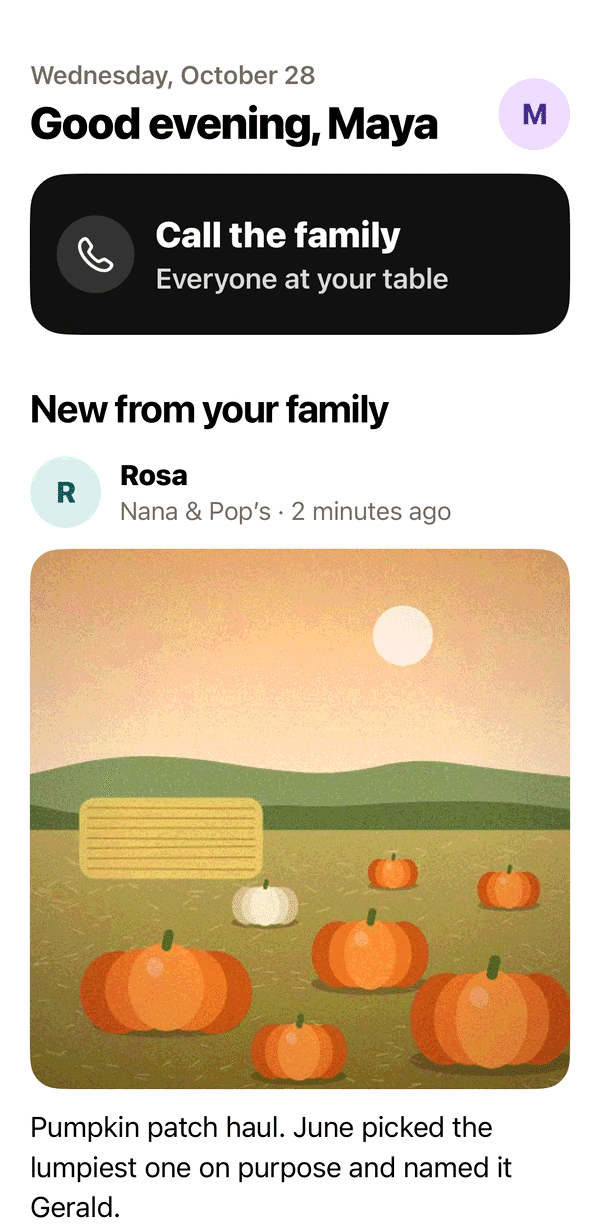
Bigger words and fewer buttons, so Nana can see what’s new and call everyone with one tap.
Turn on Simple mode
On their phone, go to Our home, then Settings, then Simple mode. A grown-up can also turn it on for anyone in their home.
See what’s new
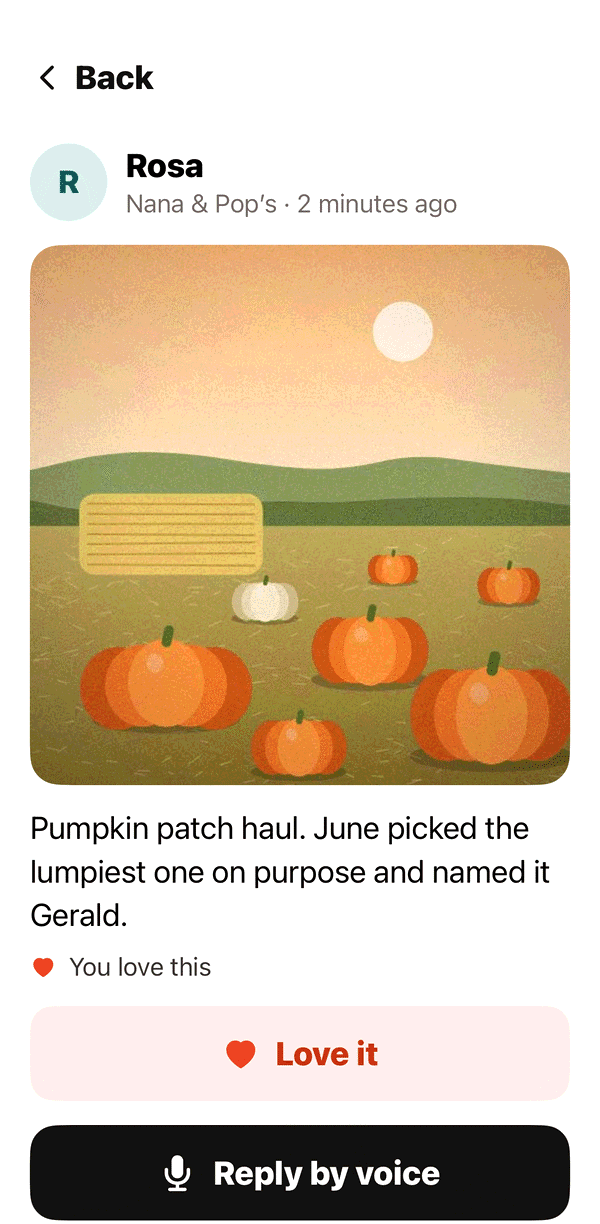
New from your family lists the latest photos in big type. Tap one to see it larger.
Love it, or reply by voice
Love it sends a heart. Reply by voice records a short message: tap once to start, and again to stop.
Call the family
One big button rings everyone at your table.
Turn it off
Tap your initial at the top of the screen and turn Simple mode off.
Good to know
Set it up together on your next visit, and send a test photo so they see how it arrives.
Settings and your account
Where to find devices, blocking, life changes, the iPad frame and your data.
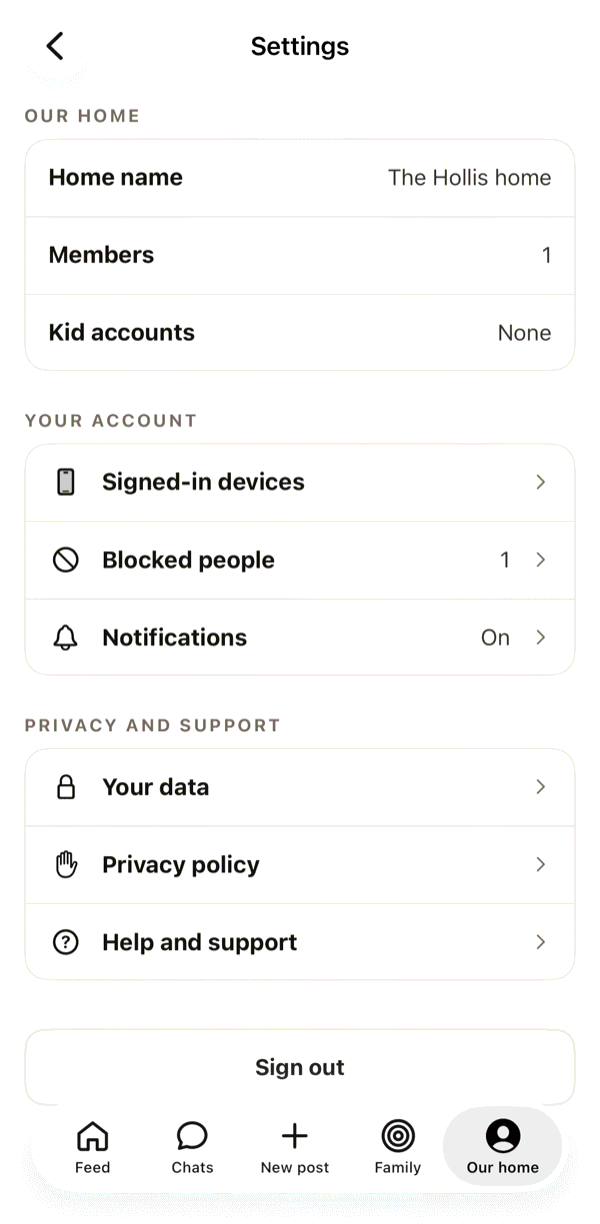
Open Settings
Go to Our home and tap the gear.
Signed-in devices
See every device signed in to your account, and sign out any you don’t recognize.
Blocked people
Unblock someone you blocked from a post.
Life changes
Someone is moving out, Split this home and Remember someone, for the days a family changes shape.
An iPad as a frame
On an iPad, hearth Frame turns it into a slideshow of Home and Table photos for the kitchen counter. Pairing a spare iPad as a frame of its own is on the way.
Your data
What hearth keeps and how to leave. To delete your account, type delete and tap Delete my account.
Good to know
Add hearth widgets to your Home Screen for the newest photo, a lit hearth or this week from your family. When the hearth is lit, it shows on your Lock Screen too.
To report or block someone, tap ••• on one of their posts. Nobody is told.